Saturday, March 19, 2016


I now get asked daily if we are going to do a new breakout.  My students have LOVED our first breakout edu game, Custodian Games.  Here is a quick video of them having a blast! A few tips I would share for future breakout games:
1. Explain the different types of locks before starting if students haven't played Breakout EDU before.
2. Encourage teamwork and set the expectation that everyone should be helpful to each other, or the game won't work.
3. Each student can use a worksheet to show that everyone is participating. The worksheet provides space for work and to write the codes.
4. Set a procedure for how students will show that they are ready to try a lock. It is important that students have actually worked to find an idea for their code, even if it isn't correct.
5. Step back and let the students do the thinking! This is the hardest for me!
6. At the end, spend time reflecting on the experience with students. What went well? What was challenging? What ideas do students have for next time?

Sunday, February 28, 2016

Google Docs Tips

Google Docs Tips

Tip 1: Type with your voice
Open document or create new
Put cursor where you want to type
Go to tools>voice typing
Click the microphone icon and say what you want to type
Click the microphone icon again when you are done talking

Tip 2: Share a PDF version of your document
Select document in drive
Push share button
Click “get shareable link”
Paste the link, but change the end of the link as follows
Before: http://docs.google.com/document/d/12345678/edit?usp=sharing
After: http://docs.google.com/document/d/12345678/export?format=pdf
Send the link that has been modified

Tip 3: Translate docs into a different language
Click tools>translate
Rename translated document and choose language

Tip 4: Insert an image
Click insert>image
Click the search tab
Search for desired picture
Select

Tip 5: Access google docs and edit from your phone or tablet
Download google docs from the app store
Make sure you are logged into your google account on your device
Open and edit any document


Increase Productivity in Google Slides


Saturday, February 13, 2016

NETA Judging Reflections

Last Saturday, I had the opportunity to participate as a guest judge for NETA contests with the NETA board.  Each person that I met was incredibly welcoming and both open and respectful while listening to ideas.  It was an honor to have the chance to experience productive struggle with many of my personal celebrities as we judged a broad variety of grant and contest submissions.  I left with many take-aways, and after a week of reflection, will attempt to explain my thoughts.

I began on a committee that was judging teacher submissions for NETA Grants.  As someone who has considered submitting my own grant, this was a unique opportunity.  In this category, there were many well-planned submissions, so our committee found it difficult to narrow it down to three winners.  One thing that stood out about the winners was that their projects utilized networking across districts, ages, and countries.  Not only did the projects connect to state standards, they provided the chance for students to grow into digital citizens as they participated in the projects.  I am excited to follow these teachers and watch for their results next year at NETA. 

After judging a wide variety of interactive media and still images from students from K-12, I found that I was left with a few questions.  Although there were some categories that had many strong submissions, there were others that had few submissions and some that did not fit the criteria for judging.  I continue to wonder about the underlying reasons for the lack of submissions.  It is possible that teachers are unaware of the contests or some categories are not as relevant with current technology and state standards, but I wonder if there are larger underlying reasons.  

As a classroom teacher who has not submitted student work, my main reason is fear that my students' work is not high enough quality.  I have many digital student products, but I am not confident submitting most into contests.  Any time I complete digital projects with students, I feel that we are on a time crunch to get back to the "real" work of prepping for assessments.  As a result, our projects do not typically receive the time, feedback from a diverse audience, or polishing that I feel they deserve.  Maybe I am over-complicating things and I just need to be brave and submit work, but this is where I am at right now.  I wonder if other teachers struggle with the same problem as they navigate the ever-changing balancing act of achieving favorable test results and providing real learning opportunities for students, where individuals can shine. 

My final observation after judging with the NETA board is how inspired I felt after a few hours of interaction with like-minded professionals.  I left feeling recharged and excited about my role as a teacher.  The NETA board members are passionate about education and are not afraid to push themselves and others outside of their comfort zones to do what is best for students--to participate in giving students the tools and authentic opportunities they need to become responsible digital citizens that possess an understanding of how to use technology to make the world a better place to live.  With this goal in mind, I have spent the past week working on projects, researching, and participating in twitter chats.  I am more determined than ever to take advantage of my role as a teacher leader in the area of educational technology, and can't wait to see what the next few months hold as I continue this process.

If you are a teacher and have considered submitting a NETA grant or student contest, here are a few tips that I would share:

NETA Grants
*Research the technology that you are requesting
*Clearly explain the timeline and budget and include links to applicable websites
*Narrow down your topic and make a well-defined request
*Choose a project that is unique and could truly be enhanced with the requested technology 
*Think big picture: How will your project impact students now and in the future?
*Bonus: Find ways to collaborate between grade levels, schools, or districts

NETA Contests
*Choose 1-3 of your best student projects to submit
*Find a contest category that best fits your student-created projects
*Submit projects that show depth of learning
*Share NETA contests with your colleagues to increase awareness!
*Submit!

Sunday, February 7, 2016

Create a Google Classroom and Assign Work


This is a brief tutorial on how to start your own google classroom and create assignments.  If your school district has an easy way to invite students, you can select a class that has been shared with you and click invite.  If not, no worries!  Your students just need to log in and have access to your class code.  Once you understand the basics, creating assignments is very simple.  

Sunday, January 24, 2016

How I have used Padlet in my Classroom


Padlet is a virtual whiteboard website where students can each post their own sticky notes to collaborate.  In this video, I share a few of the ways that I have customized Padlets to activate prior knowledge, share learning, or use a RAN chart throughout a unit of study.

Monday, January 18, 2016

Chrome and Chrome Extensions

Prior to this activity, I had some basic exposure to Youtube extensions at NETA in 2015, but had only used screencastify a handful of times. In the past I have found the chrome app store overwhelming, and have avoided the use of apps and extensions. This project gave me the little push to seek out a few extensions at a time in order to increase my daily productivity.

Wednesday, April 29, 2015

Share the Buzz

I hope that you know what I'm talking about, because I wish that every teacher could hear the buzz on a regular basis.  It is why I go to work every day.  One of my favorite things about the collaborative projects that I have completed this year is listening to the buzz that my students make when they're really REALLY excited about their learning.  It's that quiet chatter of excitement mingled with laughter and awe as students collaborate and work on a project together.

This semester one of my goals has been to share my students' writing digitally.  During third quarter, students wrote research reports and published them on Storyjumper.  They were able to share their digital stories with parents during our research author celebration.

In addition to sharing our research with parents, we were able to share it with third graders digitally.  Sara Tracy and Angie Zulkoski had their students log into Storyjumper using my teacher account and make comments on my students' work using two stars and a wish.  Here are some of the comments that we got:
  • Work on spelling.But I liked the bolded words keegan
  • I liked your book those rattlesnakes and it was cool book by sajad
  • I like that you put a lot of detils.But you need to put puncshuion.
For fourth quarter, my students published their Explanatory writing using Puppet EDU.  Once I had the links, I organized them in a symbaloo to make it easy to collaborate with others.  My students were able to share their work with many parents on our Campbell Technology night.  After viewing students' videos, parents and students left sticky notes with feedback on the published research.  The next day, my students also got to share their Puppet EDU videos live with a 4th grade class.

Today my students got to experience the other side of collaboration.  They got to be the audience.  I put students in groups of two and they logged onto Sara Tracy's third grade Storyjumper account.  Before I had students comment, I explained that I wanted them to include their name and a star.  We reviewed the sentence stems for giving a star for writing.  I wish you could have been in my classroom to hear the buzz as my students read the third grader's fractured fairytales together.  Since you weren't there, I have posted some of my student's comments below.

My new personal challenge is to provide meaningful activities to create that buzz in my classroom.  Have you heard the buzz lately?  In what ways have you used collaboration to enhance learning in your classroom?  


Saturday, April 25, 2015

NETA 2015 Engaging Elementary Students with Augmented Reality Apps


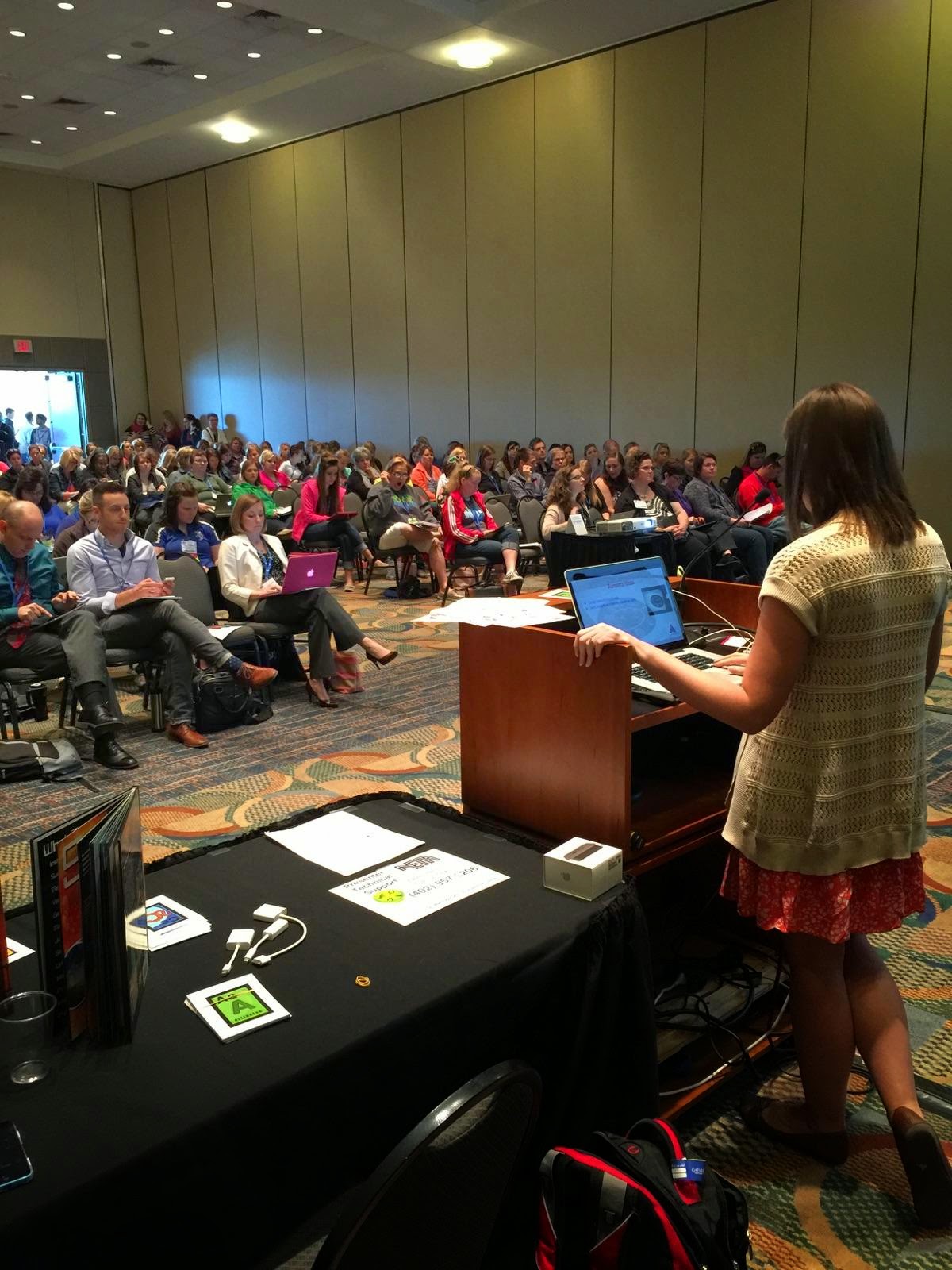
Although technology (specifically the wifi) did not work in our favor during our presentation, I enjoyed my first NETA presentation.  I hope that I was able to share ideas that would be useful to other classroom teachers.  Our presentation (link below) includes ideas for using Augmented Reality Apps with iPads in the classroom.   I was able to share how I have watched my classroom come alive through the use of Aurasma in combination with Chatterpix, Tellagami, and Puppet EDU.  My students can open a book and use Aurasma to view a video that they have created to connect their learning to the curriculum.  
It meant a lot to know that my friends and teachers came to support us as well.  Their support was a glimpse of the way teachers can encourage and challenge each other as a part of a Professional Learning Network. I am excited to share my new learning with my PLN and colleagues and hopefully inspire others to be the change that our students need!


Monday, April 20, 2015

Technology Integration...Lessons Taught and Lessons Learned

Seven months ago, I wrote the following professional goal: "My Professional Goal is to maximize and enrich instruction through the use of technology in my classroom. I would like to enhance my instruction by connecting technology resources with the curriculum and having students productively use technology to enrich their learning.  I also hope to help students make meaningful applications to the world through the use of technology."

Looking back over the past semester, I have had many opportunities to grow in the area of technology use.  Over time, I have developed a Twitter PLN of passionate educators with the goal of educating future-ready students.  I have followed technology blogs and have had the opportunity to learn from technology mentors.  These experiences have helped me to refine technology integration in my classroom.  


I remember teaching one of my first technology integration lessons in January.  I had created a Kahoot to prepare my class for a comprehension test.  Students were engaged and I was amazed at the immediate feedback I received.  I realized how powerful a tool like Kahoot could be in my classroom.  This was my view of technology integration then: a single lesson created to maximize student learning and ultimately help them perform well on an assessment.  

As an advocate for other educators and someone who is passionate about preparing students for their future, I hope to teach others that this is NOT the sole purpose of technology integration.  There are many positive effects of technology in the classroom, but preparing for tests does not get my students ready to be productive citizens in the world.  In my classroom, one of the most powerful impacts has been the way technology allows for natural collaboration.  Using multimodal digital texts, students and teachers can interact and use literacy in new and exciting ways.  Teaching students to interact digitally is one step towards creating responsible citizens.  


Since that first Kahoot lesson, my view of technology integration has definitely evolved.  As I reflect on the past few weeks in my classroom, I recall many new experiences.  I hear students working together to demonstrate "How-to" writing planning videos using FreeFlow.  I feel my excitement as my classroom filled with parents and students that had come to see my students' "How-to" videos.  I see the joy on their faces as they received feedback about their videos.  I watch my students using Aurasma to make their Wonders Anthologies come alive with Tellagami and Chatterpix overlays.  


I have learned that technology integration is not isolated lessons that teach to the test.  It has permeated everything that we do in my classroom; it has become a way of life.  As a life long learner, it is exciting to think about the future of technology in my classroom.  I plan to continue to perfect what I am doing with the goal of meeting curriculum standards and most importantly creating responsible and productive digital citizens.  


  • How-to Writing Unit with Technology Integration

    For our next unit in writing, the Second Graders learn to write a "How-to." Normally at the beginning of this unit, students spend time dialoguing with peers about things they know how to do before choosing their topic. We discuss things that they can make (crafts, pictures), things that they can do (sports, tie a shoe), and foods they know how to prepare (PB&J, hot chocolate). This year, I plan to have students actually bring an object in to demonstrate their how-to.

    For my model how-to, I use a shamrock craft to demonstrate. Students have the opportunity to make the craft on one day. After having the experience of making the craft, the class helps me plan and write my how-to. I experimented with Popplet, Lucidchart Diagram, Inspiration, and Pictochart.com, and finally chose to have my second graders try Popplet to create a graphic organizer. In previous years, students have used a pencil and paper to draw each step and write bulleted lists of the directions. This year, I will have students use a similar method, but on Popplet.

    I like Popplet for a few reasons. First, it is very easy to create individual student accounts. One thing that I have found in using technology to enhance my teaching is that students often need more time than they would have in just one period of work and it is ideal for students to be able to save their work if possible. I plan to have my students create their own accounts using their lps.org email and their district password. I also like Popplet because of how easy it is to navigate. Students only have to double click to create a new Popplet. There are also editing options at the bottom of each Popplet. They allow you to change the color, add text, draw free hand, and insert pictures into a Popplet. For my students' purposes, I plan to have them freehand sketches for each step and then add notes to the graphic organizer.

    In their research, Bogard and McMackin (2012) discuss several ways that technology can enrich student writing. The use of technology allows for natural collaboration while planning, writing, and editing a project. According to their work, collaboration throughout the writing process pushes students to think about their work critically and get authentic peer feedback. In this way, students are constantly polishing their work to create their best product. Because I am having my students bring objects in to demonstrate their how-to, it will be natural for them to use technology to create a video of themselves using my iPad or iPod. Because I only have two devices in my room, I needed a way to store my students' work in the cloud, rather than on devices. I ended up using http://freeflowapp.com/ to film videos, then we could access the videos from any device, as long as we were logged into my account. This worked out wonderfully. It gave students several different opportunities to collaborate throughout the process and it scaffolded those that needed further support.

    Bogard and McMackin also demonstrate the power of publishing using technology. In the past, I have used Storyjumper for this purpose. Since it's the time of year for NESA, I knew that I would not have much availability in trying to check out the laptop cart during writing. I ended up deciding to publish writing by creating videos. Puppet EDU was perfect for this. Students created their videos with the help of a partner and we organized the links from Puppet EDU on this Symbaloo.

    The really exciting part of organizing the videos in a Symbaloo was the many opportunities for feedback that it gave. At Campbell's Technology night, parents and students were invited to my classroom to view videos and use sticky notes to provide feedback after watching. They attached the sticky notes to the correct "How-to" book. The buzz in my classroom the next morning was priceless. My students were so excited to read the feedback from the many people that had visited our room. Our class also got to share "live" with a group of 4th graders the next day. The joy of watching student collaboration in action was priceless! This has by far been my favorite technology integration of the year! I plan to try something similar with each writing unit!


    Thursday, April 2, 2015

    ISTE Standards for Teachers


    The International Society for Technology in Education Standards for Teachers provide a basis for how teachers should strive to use technology to create a collaborative environment where students take ownership for their learning. It is striking to compare these standards to those that have been shaped as a result of the Common Core Standards. Many teachers feel obligated to plan and guide instruction related to State or Common Core Standards with complete fidelity. Such fidelity leaves minimal room for the creativity described in the ISTE Standards for Teachers.

    According to the ISTE Standards for Teachers, educators should “Facilitate and inspire student learning and creativity.” Students should be exposed to “real-world issues and solve authentic problems using digital tools and resources.” Additionally, students should have the opportunity to engage in learning collaboratively, in both face-to-face and virtual environments.

    When I reflect on how my current classroom practices would rate according to these standards, I think about the independent projects that I have challenged my students to engage in this school year. With the projects I have assigned, I have given somewhat open-ended questions for my class to research. For example, I have assigned Wonders LibGuides projects to my students and given them the opportunity to collaborate on the projects and share with their peers.

    One thing that would make the learning even more meaningful is for students to come up with their own ideas for research projects. Student ideas could still connect with the curriculum Essential Question, but they could have some freedom in choosing research that is meaningful to their learning. Students could also assist in creating physical or virtual audience members that could give feedback and continue the collaboration.

    As I have implemented projects where my students have had more freedom, I have definitely felt less comfortable. I have worried that I am losing control with my students. But ultimately, isn’t that what my job is…to gradually disappear into the background, and allow my students to shine and take control as they learn to become productive and responsible citizens?

    Friday, March 13, 2015

    Flipping the Classroom: My first screencast!

    I have to admit, when I watched this video on flipping the classroom, I was a little intimidated.  I love using my classroom as a place for research and trying new things, but I have some fears about being able to flip my classroom.  I am not afraid to put in a little extra time, because I believe that my students would reap the benefits immensely.  The easy part is creating screencasts and sharing them with parents.  The hard part is getting everyone on board.

    My biggest concern about flipping the classroom is how I would reach every student.  I know that at least 5 students in my class do not have access to internet at home, so I would have to problem solve how to make it work for these students.  My co-worker, Jason Wilmont mentioned that when he flipped his classroom, he had a few students that would watch the screencasts with a volunteer at school, so it worked ok for him.  In addition, I would have to get my parents on board and really make sure they understand what I am doing and why I am doing it.

    This screencast is a lesson on problem and solution using the 2nd Grade Wonders Unit 5 Week 4 Shared Read Text: The Art Project.  I would have had students read the text independently during the day before assigning this video.  In addition, I would send students home with a blank graphic organizer to fill out while they watch the video.  The screencast would be the student's second read where they are completing close reading with the text.  I included the text in my screencast, so students can easily jump back and forth in the video as necessary.  I am very excited to share this first screencast with my class on Monday!

    Tuesday, March 3, 2015

    Digital Citizenship Ideas

    As teachers work toward the goal of creating responsible, future-ready citizens, it is crucial to teach them how to be digital citizens.  Just as a teacher must model social and educational expectations, it is key to devote time to digital citizenship expectations.  The following are a few ways that teachers might provide instruction about digital citizenship for the K-2 classroom.  

    Pause and Think Online: Includes a video and song that teaches students how to be safe, responsible, and respectful online.  There is also a poster to go with the video.  The resources are primary friendly and I love that it ties to being safe, responsible, and respectful, since this is a school-wide expectation as well.   It could fit with a Health Unit on safety or when reviewing classroom expectations.  

    My Online Neighborhood: This kid friendly video compares the internet to a neighborhood, where you can visit many places, communicate, and learn new things.  This might tie in nicely with a Social Studies Unit on Communities.  After discussing the many possibilities for the internet, the video provides 3 key safety rules: 
    1. Always ask a parent first.
    2. Only talk to people you know.
    3. Stick to places just right for you.  

    Care and Maintenance Poster for Younger Kids: This poster provides a nice visual to remind students how to properly care for devices.  I have quickly learned the importance of reviewing laptop procedures, just like I would review any other procedure.  
    1.  Please don't get me wet.
    2. Share me with others and take turns.
    3. Be gentle with my screen and buttons.
    4. Turn me off when you are not using me.
    5. Carry me with two hands.   (This one is especially relevant in my classroom!)

    Monday, February 16, 2015

    Using Flubaroo to Grade a Google Form Assignment

    I love the idea of using google forms as a method of assessment.  There are so many possibilities for types of answers and students can edit a form themselves to come up with their own questions.  One downfall to using google forms rather than Kahoot or Socrative was that I wouldn't get the instant feedback with my students' results.  To me, this is one powerful piece of using technology in the classroom.  You can have student results at your fingertips and use those results to make adaptations to meet the needs of students.

    When I read this article about Flubaroo on freetech4teachers, I was excited.  Flubaroo is a tool that teachers can use to grade online assignments.  Here are the steps to follow in order to use Flubaroo in combination with google sheets results from a google form.

    1.  Go to http://www.flubaroo.com/ and click "Try it now."  You will need to be logged into whatever google account you want flubaroo to be added to.  Then click the button that says + free.

    2.  After students have taken a google forms quiz, you will be able to view their results in google sheets.  Make sure that when you write your google forms quiz, you have a question that has the student write their name so you can later identify their results.  When you are viewing results, go to add-ons and select Flubaroo and grade assignment.

    3.  Flubaroo will prompt you to choose how many points each question is worth.

    4. You will have to choose one submission as the answer key.  My answer key was under the name "Charissa."  

    5. When the grading is complete, you will be able to view results in a spreadsheet format.


    And there you go!  I know there is an option to email scores to students, but my students don't log into their email accounts yet, so I haven't figured that out yet.